3 must do's when pairing a Saphe Traffic alarm with a smartphone
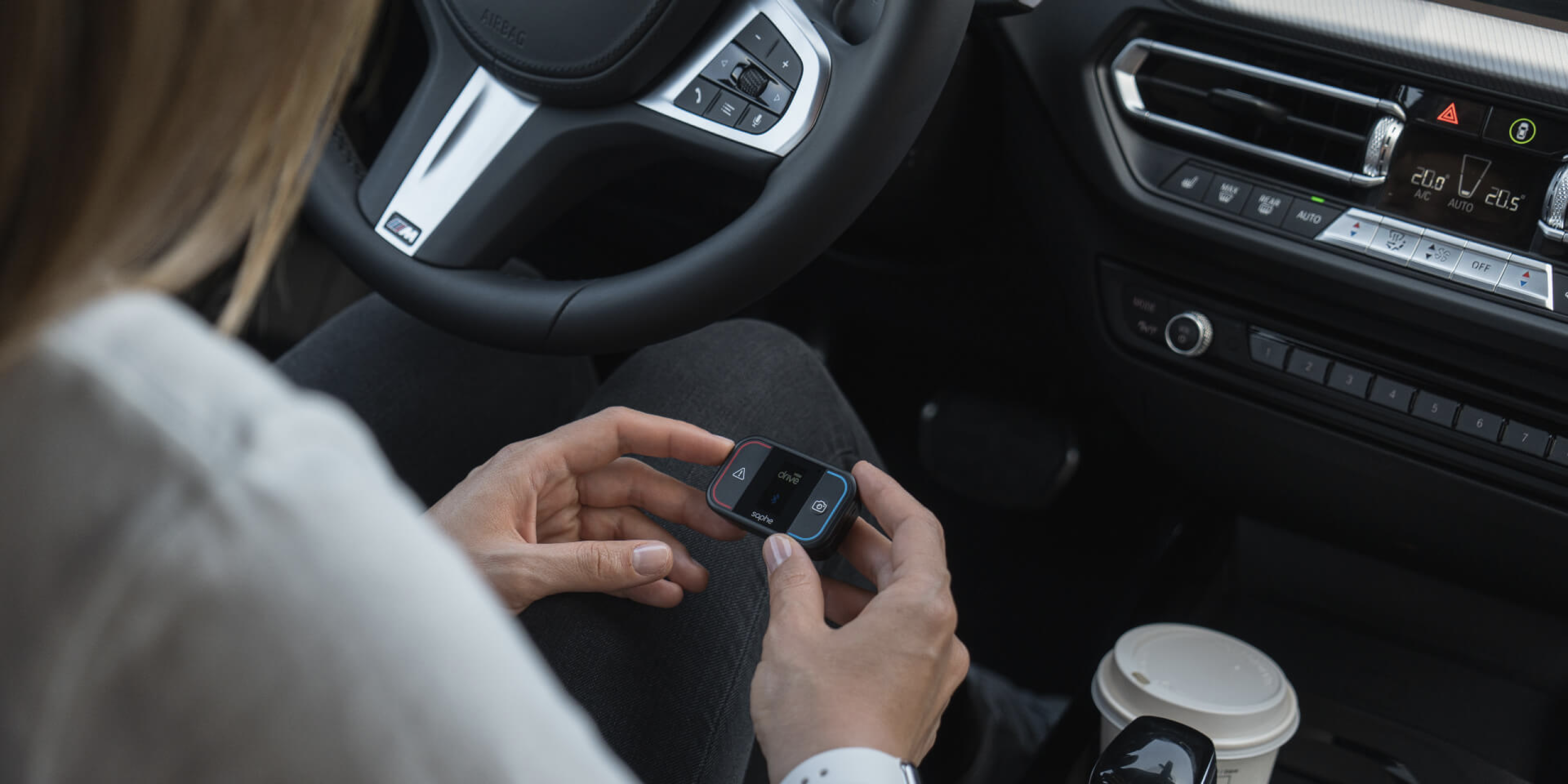
You must connect using the Saphe Link App, which you download from either the App Store or Google Play. It is important that you connect to Bluetooth via the App and not via the telephone’s Bluetooth settings. The connection between your Saphe traffic alarm and your telephone requires three things:
Bluetooth and mobile data must be switched on
Bluetooth must be kept switched on all the time so that your Saphe traffic alarm and the Saphe Link App can connect. Besides Bluetooth, you must also have your mobile data switched on when you use your Saphe traffic alarm. Your Saphe traffic alarm uses minimal data, so you don’t need to worry when using it abroad. It’s very common for both Bluetooth and mobile data to be switched on all the time nowadays, so it should happen automatically.
Access to location (GPS and location)
For your Saphe traffic alarm to work you must give the Saphe Link App permission to “Always” use the GPS in your telephone. This does not mean that the Saphe Link will always use the GPS, it just means that the App is able to do so when it needs to. GPS is only used when you use your Saphe traffic alarm when driving.
If you set these settings only to “When using the App”, you need to open the Saphe Link every time you want to use your Saphe traffic alarm. Moreover, the screen must always be switched on if you have only set the location permissions to “When using the App”. Therefore, switch your GPS or location permissions to “Always”.
Deactivating power-saving mode
If you have power-saving mode activated on your telephone, there may be some factory settings that will close the Saphe Link App down. You can prevent this by deactivating the power-saving mode on your smartphone. Thus, you can be certain that your Saphe traffic alarm and your smartphone will always be paired.
How you connect your Saphe traffic alarm with your telephone and what you need to be aware of depends on the specific telephone you have. Below, we will show you how to easily connect your Saphe traffic alarm and your smartphone.
iPhone
Pay attention to the power-saving function. The function can be activated and deactivated under “Settings > Battery”. To enable the Saphe Link to update alarms while you are driving and perhaps have the screen switched off, the App must be able to update itself in the background. You can activate this function by finding “Saphe Link” in the telephone’s “Settings”.
Samsung
If you have a Samsung telephone, it is important the GPS in your telephone has been calibrated. Moreover, it is important that you have deactivated “Power saving mode” on your Samsung telephone. This may mean that your Saphe traffic alarm will not pair with your telephone automatically as the power saving mode can turn the Saphe Link App off.
Huawei
If you have a Huawei telephone, there are some pre-installed settings that can prevent it from connecting to your Saphe traffic alarm. Fortunately, there is a solution to this. Sometimes, Huawei can close the Saphe Link App. This is due to Huawei’s app management, which is an automated process.
Another pre-installed setting on a Huawei telephone that may contribute to your Saphe traffic alarm and telephone not connecting optimally is the screen’s Hibernation function. To solve this problem, you must specify that the Saphe Link App is able to function in hibernation mode. You do this by going to “Settings > Battery > More battery settings”. Here, activate “Stay connected when device sleeps”.
OnePlus
On OnePlus, you should remember to deactivate the power-saving function. If it is switched on, the function can turn the Saphe Link App off without you being aware of it.
If any pairing issues arise between your Saphe traffic alarm and the Saphe Link App, you can clear your Bluetooth cache and data. However, you should be aware that this will delete all your previous pairings with devices. If you discover that the Saphe Link App does not save your settings, this may be due to a setting in your OnePlus.
HTC
On an HTC telephone, the battery-saving function can prevent an optimal connection between your Saphe traffic alarm and your smartphone.
We hope that the above guide helps you to connect your Saphe traffic alarm and your smartphone so that you get as much as possible from your product.